
Remote servers
See what's using disk space on a server over SSH
Scan a Linux server, NAS or remote Mac over SSH and explore it in the same sunburst chart as your own disk. Free and open source, no setup on the server.
Updated 28 September 2026
When du isn't enough
Every server fills up eventually: a runaway log, a forgotten Docker volume, a backup that never got rotated. The usual fix is an evening of du -sh * | sort -h, one folder at a time.
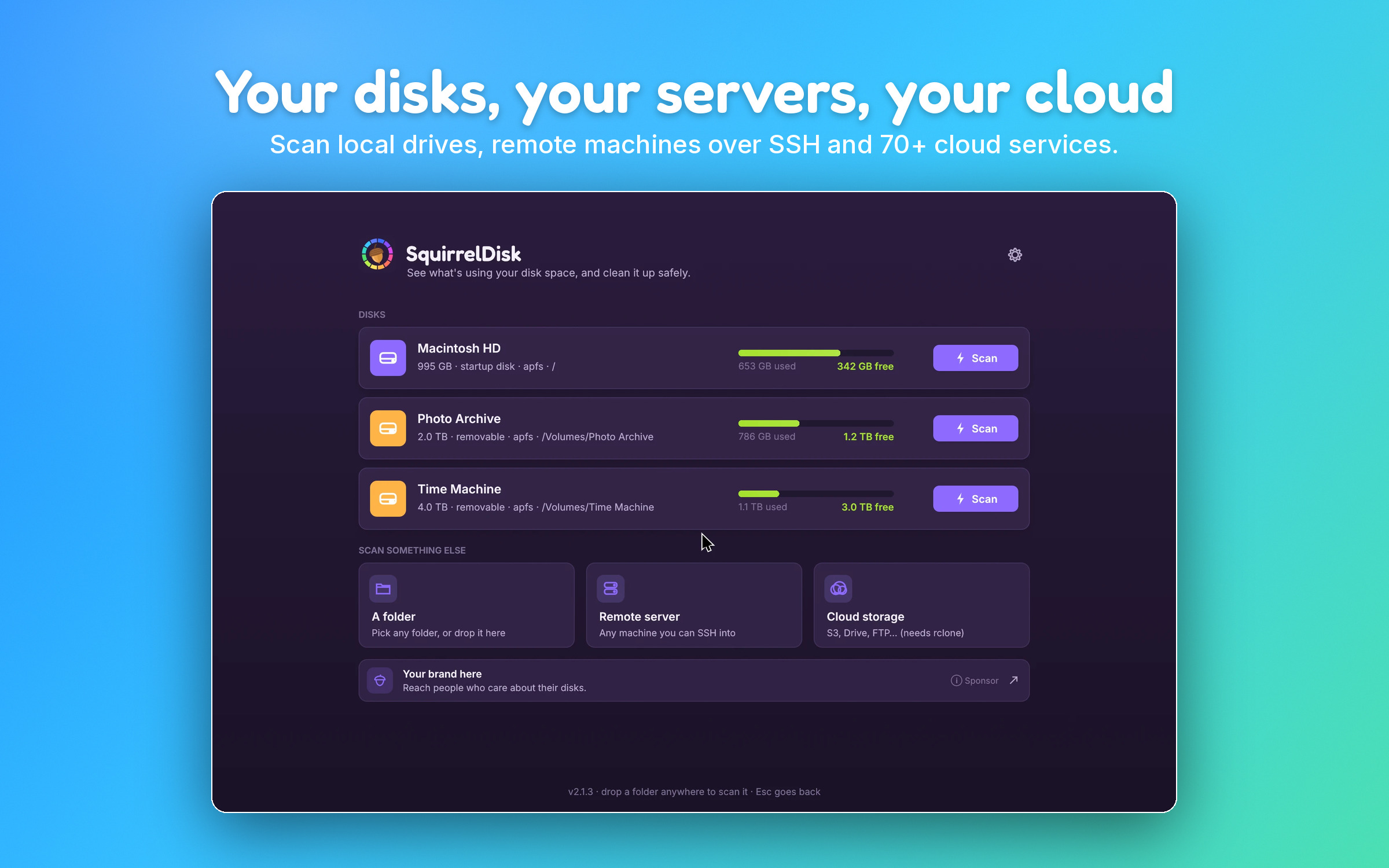
SquirrelDisk does the same job visually. Pick Remote server on the home screen, choose a host, and the whole file system appears as a sunburst chart that builds up while the scan runs. The biggest folders stand out in seconds, and you can click into them just like on your own disk.
How it works
- You pick a host. SquirrelDisk reads the hosts in your
~/.ssh/config, or you can typeuser@host. - It connects with your own
ssh. Your keys, agent and config apply. One connection is reused for the whole session, so you authenticate once. - It scans with the best tool available. SquirrelDisk first tries to use a small helper program in
~/.cache/squirreldiskon the server (it downloads the right build for the server from GitHub, or copies itself when the server runs the same system as your computer). If that isn't possible, it uses GNUfind, and as a last resortdu. - You explore the result on your computer. Zoom into folders, hover to see what's inside, switch between sunburst and treemap. The scan stays on the same file system, so network mounts under it aren't counted twice.
Cleaning up a server
Drag the folders you don't need into the collector at the bottom, then choose:
- Delete permanently: removes them on the server.
- Back up, then delete: copies them to a folder on your computer first (over
scp), then removes them from the server.
Before anything is removed, SquirrelDisk checks each path again against its safety rules: system folders like /usr, /etc or /var, and the server's home folder itself, can't be deleted. App and settings folders ask for an extra confirmation.
Remote deletion has no undo. If in doubt, back up first.
Good to know
- Permissions: you see what your SSH user can read. To scan the whole system, connect as a user that can read it.
- Big file systems: millions of files are fine. The helper scans on the server itself and sends back the finished tree in one go, which keeps slow connections usable.
- Cloud storage: S3 buckets, Google Drive, Dropbox and other services are scanned the same way through rclone. See cloud storage.
Questions
Do I need to install anything on the server?
No. SquirrelDisk only needs SSH access. It tries to place a small helper in ~/.cache/squirreldisk on the server to make the scan faster; if it can't, it falls back to the standard find or du commands. You can delete that folder at any time.
Does it work with SSH keys, passphrases and my `~/.ssh/config`?
Yes. SquirrelDisk runs your system's ssh client, so keys, agents, jump hosts and aliases from ~/.ssh/config work as they do in the terminal. Hosts from your config are offered in the list. If a key passphrase or password is needed, SquirrelDisk asks for it and keeps it in memory only for that session.
Which servers are supported?
Any machine you can reach over SSH that has a POSIX shell: Linux servers, NAS boxes, Raspberry Pis, and Macs with Remote Login turned on.
Can I delete files on the server from SquirrelDisk?
Yes. Items you collect are deleted on the server with rm, so there is no Trash there. You can copy them to a folder on your computer first with the "Back up, then delete" option. System folders and the server's home folder are protected, as on your own computer.
Is anything sent anywhere else?
No. SquirrelDisk connects only to the server you choose. File names and sizes travel over your SSH connection to your computer and stay there.
Try SquirrelDisk
Free and open source, for macOS, Windows and Linux.
v2.3.1 · macOS · Windows · Linux