
SquirrelDisk for Mac
Disk space analyzer for Mac: SquirrelDisk
See what is taking up space on your Mac and free it up safely. Free, open source disk space analyzer for Apple silicon and Intel Macs.
Updated 28 September 2026
What SquirrelDisk does on a Mac
SquirrelDisk scans your Mac and draws every folder as a slice of a sunburst chart, sized by the space it takes. The chart builds up live while the scan runs, so the big folders show up early. Click a slice to zoom in, click the centre to go back. The side list shows what is inside, biggest first. Tiny files are grouped so the chart stays readable. Prefer rectangles? Switch to the treemap view.
When you find something you don't need, drag it into the collector at the bottom. Then choose what happens: move it to the Trash, delete it for good, back it up to a folder first, or back it up to cloud storage and then delete it. There is also an optional secure erase. On APFS and SSDs the drive may keep old blocks for a while, so FileVault is what really protects your data there.
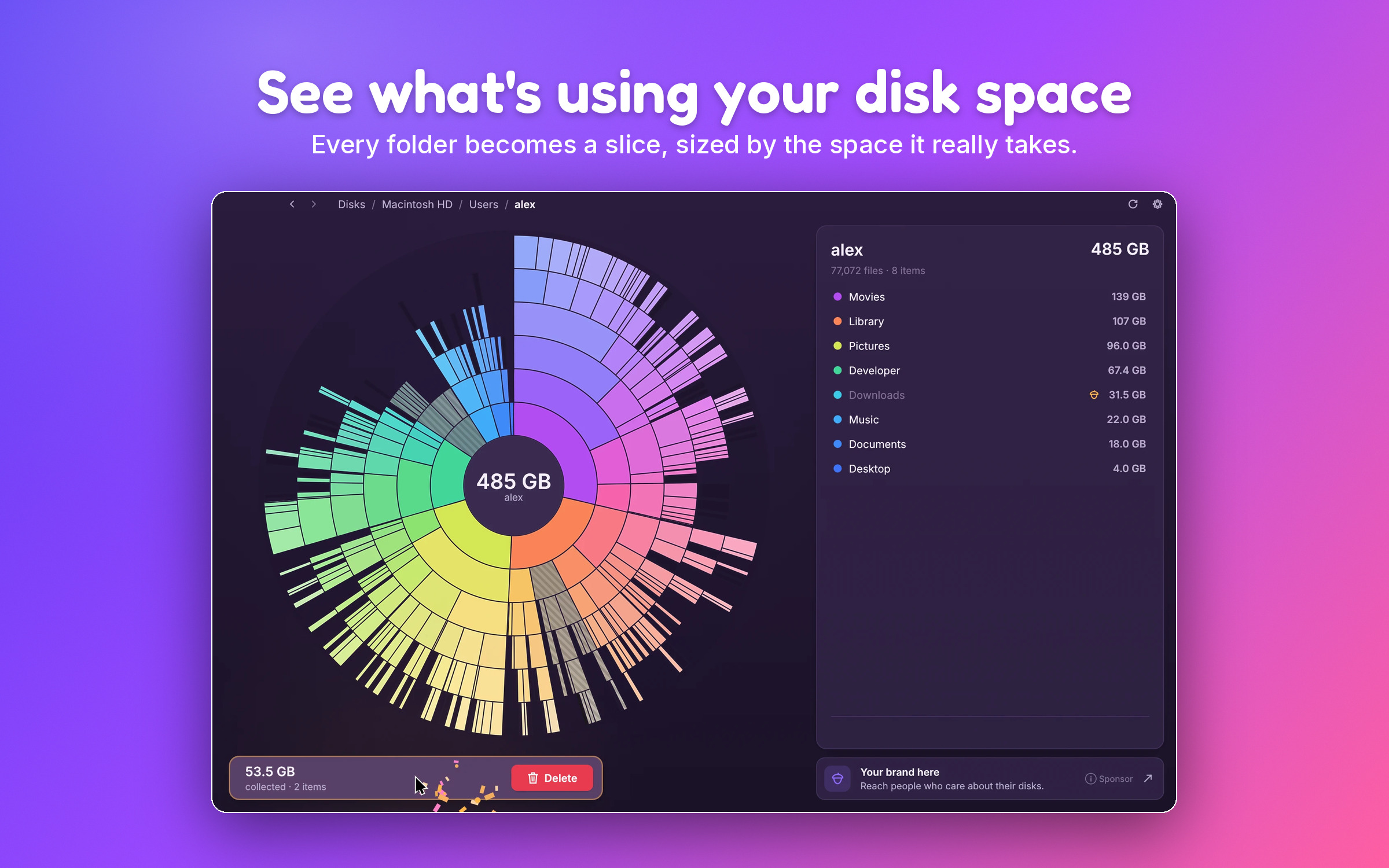
The chart updates by itself when files change in Finder. Sizes are real space on disk: iCloud files that are not downloaded count as zero.
What usually takes up space on a Mac
Start with the built-in view. Open System Settings → General → Storage. It shows a coloured bar and a list of categories, with some suggestions like emptying the Trash automatically or optimising storage. It is a good overview, but it doesn't show you which folders are big. That is where a disk analyzer helps.
These are the usual suspects.
System Data
This is the grey part of the Storage bar, and it can be large. It is a mix of things: caches, logs, Time Machine local snapshots, virtual memory files, and app data that doesn't fit another category. Much of it belongs to macOS and is managed by macOS. Don't delete files inside /System, /private or /Library by hand. SquirrelDisk won't let you collect system folders anyway.
What you can safely look at is the part inside your own Library folder. Most of the items below are counted as System Data.
iPhone and iPad backups
Local device backups live in ~/Library/Application Support/MobileSync/Backup. Each one can be many gigabytes. The safe way to remove one is in Finder: select your device in the sidebar, click Manage Backups, and delete the old ones. Make sure you have a newer backup, in iCloud or elsewhere, before you do.
Photos library
The Photos library is a single package in ~/Pictures. Don't open it and delete files inside it, because that can damage the library. Delete photos and videos in the Photos app instead, then empty Recently Deleted. If you use iCloud Photos, turn on Optimize Mac Storage in Photos settings to keep smaller copies on your Mac.
Xcode DerivedData and simulators
If you write code, ~/Library/Developer/Xcode/DerivedData holds build files. It is safe to delete: Xcode rebuilds it the next time you build, which takes longer once. Old iOS simulators and device support files in ~/Library/Developer can also be large. Remove simulators from Xcode (Window → Devices and Simulators) or with xcrun simctl delete unavailable.
Docker.raw
Docker Desktop keeps its images and containers in one big disk image, Docker.raw, inside ~/Library/Containers/com.docker.docker. Don't delete this file directly: you would lose every image, container and volume. Run docker system prune to remove unused data, or lower the disk size limit in Docker Desktop settings. Docker.raw is a sparse file, so Finder may show a bigger size than it really uses. SquirrelDisk shows the real number.
Caches
~/Library/Caches holds data that apps can download or rebuild. Deleting it is usually safe, but quit the apps first, and expect them to be a little slower the first time after. Browsers, Spotify, and package managers like Homebrew or npm often keep large caches. Where an app has its own "clear cache" button, use that.
The rest
Also check ~/Downloads, old installers (.dmg files), movie projects, and the Trash itself. Moving files to the Trash does not free space until you empty it.
Install on macOS
- Download the .dmg. It works on Apple silicon and Intel Macs.
- Open it and drag SquirrelDisk to Applications.
- Open SquirrelDisk. The first time, macOS may say it "can't be opened" or "is damaged". This is because the app is not code-signed. Open System Settings → Privacy & Security, scroll down and click Open Anyway next to the SquirrelDisk message, then confirm. On recent macOS versions, right-click → Open is no longer enough. The download page also has a one-line Terminal command.
After that, SquirrelDisk updates itself. It is free and open source (AGPL-3.0), with no account and no analytics. A small sponsor banner inside the app, chosen on your computer, helps keep it free.
Beyond your own disk
SquirrelDisk can also scan a server over SSH, and cloud storage such as S3, Google Drive or Dropbox through rclone, which it installs with one click. It is available in 25 languages and 7 colour themes.
How it compares
DaisyDisk is a well-known, polished Mac app with a similar sunburst idea. It is paid and Mac only. If you already own it and are happy, there is no strong reason to switch. SquirrelDisk is free, open source, and also runs on Windows and Linux. If you came from Windows and miss WizTree or WinDirStat, our pages on those explain what works on a Mac.
Questions
Does SquirrelDisk run on Apple silicon and Intel Macs?
Yes. The .dmg works on both Apple silicon and Intel Macs. It is a native app written in Rust, not a web page in a wrapper.
Why does macOS say SquirrelDisk can't be opened or is damaged?
The app is not code-signed, because it is distributed outside the App Store. Open System Settings → Privacy & Security, scroll down and click Open Anyway next to the SquirrelDisk message, then confirm. The download page has a Terminal alternative.
Why is my folder smaller in SquirrelDisk than in Finder?
SquirrelDisk shows the space files really take on disk. Files that live only in iCloud Drive (or Dropbox, Google Drive, OneDrive) count as zero, because they are not on your Mac. Hard links are counted once, and sparse files such as Docker.raw count only the blocks they use.
Can I delete System Data with SquirrelDisk?
Not directly, and that is on purpose. System folders can't be collected. You can find the parts of System Data you own, such as caches, iOS backups and developer files in your Library folder, and clean those up.
Can I undo a cleanup?
If you choose Move to Trash, yes: the files go to the Trash as usual and you can put them back. Delete for good and secure erase can't be undone, so the app asks before it does either.
Try SquirrelDisk
Free and open source, for macOS, Windows and Linux.
v2.3.1 · macOS · Windows · Linux