
How to see what's taking up space: treemaps, sunbursts and disk maps explained
A hard drive visualizer turns millions of files into one picture. Here is how treemaps and sunbursts work, how to read them, which one to pick, and how to try both for free on Mac, Windows and Linux.
Published 5 October 2026
Your disk is full, and Finder or Explorer won't tell you why. You could sort folders by size one at a time, or run du -sh * | sort -h in a terminal and walk down the tree. That works, but it's slow, because a list only shows one folder at a time. The 40 GB you forgot about is always three levels deeper than where you're looking.
A hard drive visualizer solves this by drawing the whole disk at once. Every file and folder gets an area that matches its size, so the biggest things are, literally, the biggest things on screen. There are two main ways to draw that picture: the treemap and the sunburst.
Why a list isn't enough
Lists are great for answering "what's biggest in this folder?". They're bad at "where on this disk did my space go?", for two reasons:
- Scale. A typical disk has hundreds of thousands of folders. Nobody reads a list that long.
- Depth. Big files hide inside small-looking paths. A folder called
LibraryorAppDatatells you nothing until you open it, and the one after it, and the one after that.
A chart shows every level at the same time, so your eye finds the big blocks in a second, wherever they are.
Treemaps
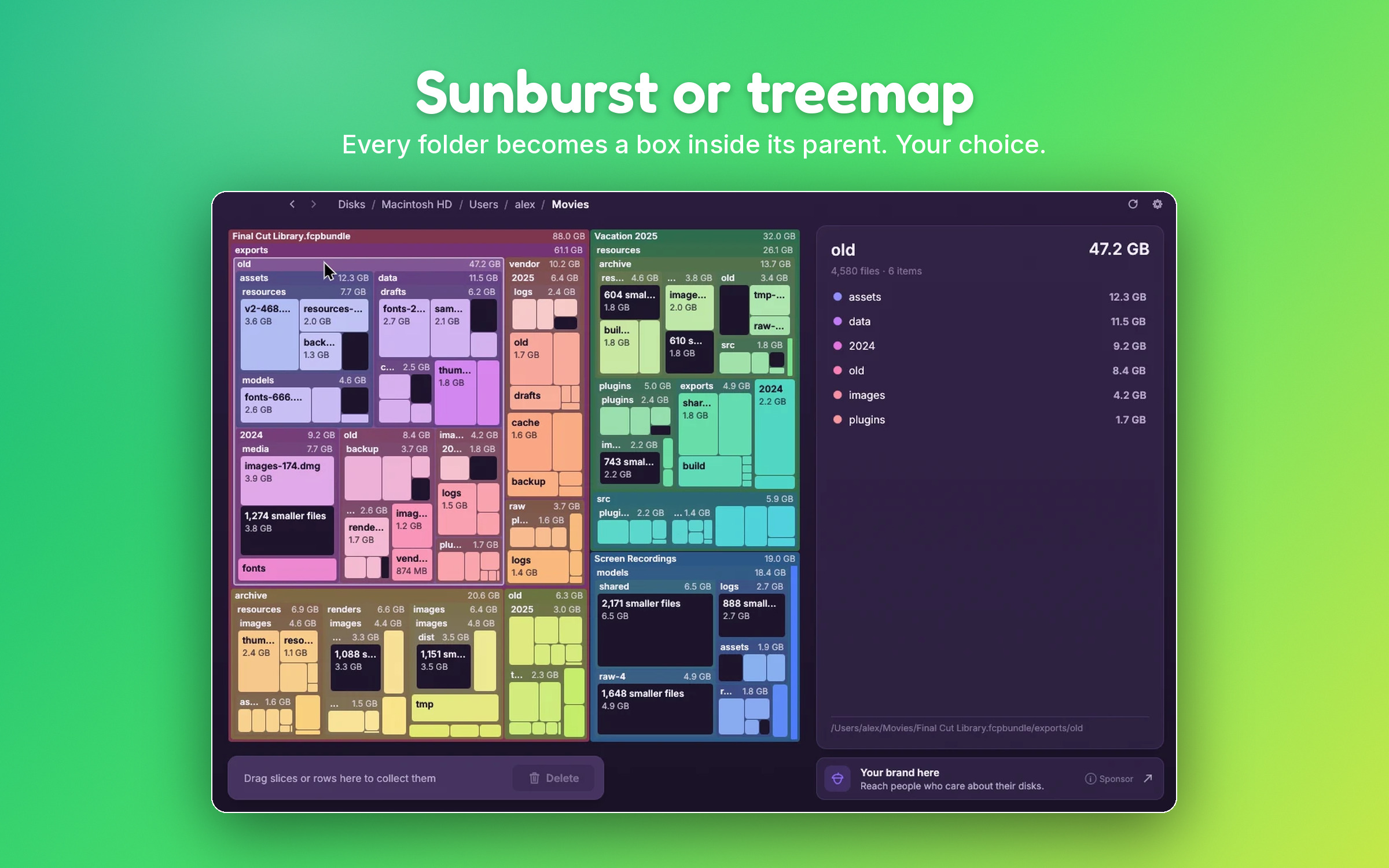
A treemap draws the disk as a rectangle. The rectangle is split into smaller rectangles, one per folder, each sized by how much space the folder takes. Each of those is split again for its subfolders, and so on down to single files.
The idea comes from Ben Shneiderman, a computer scientist at the University of Maryland. Around 1990 his own hard disk was full, and he wanted a way to see the whole tree of folders on one screen. Treemaps have been the standard way to draw disks ever since: WinDirStat, WizTree, SpaceSniffer, GrandPerspective and Disk Inventory X all use them.
How to read a treemap
- Area is size. A box twice as big holds twice as many bytes.
- Nesting is structure. A box inside another box is inside that folder.
- Colour depends on the tool. Some colour by file type (WinDirStat, Disk Inventory X), some by folder.
Strengths and weaknesses
- Good: uses every pixel, so even a disk with millions of files fits. Single huge files stand out as big solid blocks.
- Less good: comparing two thin, long rectangles by eye is hard. Deep nesting turns into many tiny boxes, and the folder structure gets harder to follow.
Sunbursts
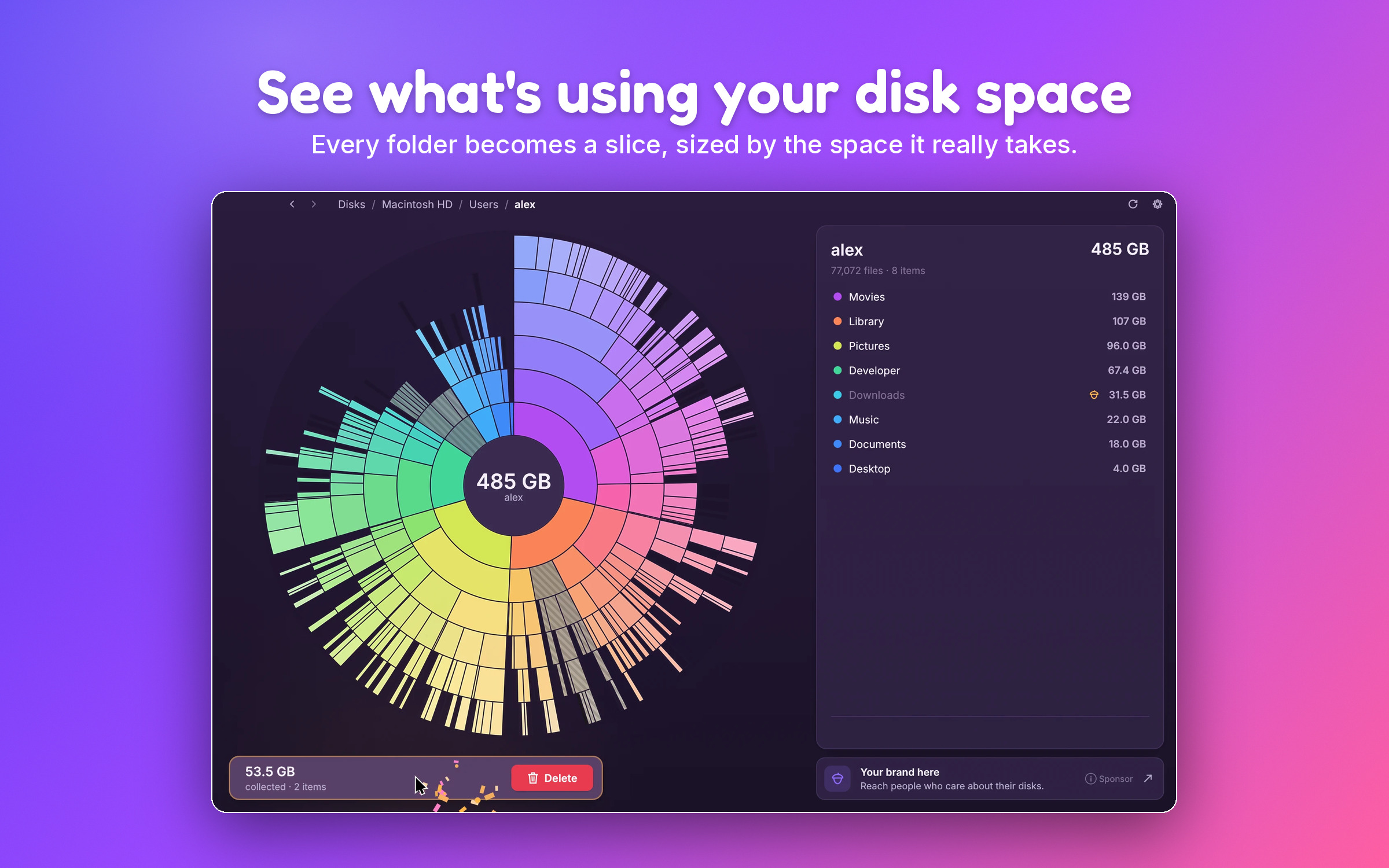
A sunburst (also called a ring chart, radial treemap or, in some apps, a disk map) draws the disk as circles. The folder you're looking at sits in the centre. The first ring around it shows its contents, each slice sized by space. The next ring shows what's inside each of those slices, and so on outwards.
DaisyDisk, Filelight, GNOME's Disk Usage Analyzer and SquirrelDisk use sunbursts.
How to read a sunburst
- The angle of a slice is size. A slice that covers half the ring is half the space.
- Distance from the centre is depth. Inner rings are top-level folders, outer rings are deeper ones.
- Follow a slice outwards to see where its space actually is.
Strengths and weaknesses
- Good: the folder structure is obvious. You see right away that most of a big folder sits in one subfolder, two levels down.
- Less good: outer rings are longer than inner ones, so deep items look a bit bigger than they are. Systems engineer Brendan Gregg points this out in his comparison of flame graphs, treemaps and sunbursts. Most tools limit how many rings they draw, so very deep folders need a click to zoom in.
Treemap vs sunburst: which should you use?
| Treemap | Sunburst | |
|---|---|---|
| Best at | Finding single huge files | Seeing which folder branch holds the space |
| Uses screen space | Fully | Less (it's a circle) |
| Folder structure | Harder to follow when deep | Clear, ring by ring |
| Size comparison | Area (hard for thin boxes) | Angle (easy within a ring) |
| Known from | WinDirStat, WizTree, SpaceSniffer | DaisyDisk, Filelight, Baobab |
In practice, the best answer is both. Look at the sunburst to find the branch that's too big, and switch to the treemap to find the single files inside it. Brendan Gregg reaches the same conclusion: offer several views of the same data.
Other ways to look at a disk
- Tree lists, like OmniDiskSweeper, TreeSize or the side list in most visualizers: exact numbers, sorted biggest first.
- Terminal tools, like
du,ncdu,gduordust: fast, scriptable, and they work over SSH on a server. - Flame graphs: a close relative of the sunburst, drawn as stacked bars. Common for CPU profiles, rare for disks.
Space visualizer or disk health tool?
People sometimes search for an "HDD visualizer" or "hard drive analyzer" when they really want to know whether the drive is failing. Those are different tools. A space visualizer shows which files use the space. A health tool, such as CrystalDiskInfo on Windows or smartctl on Mac and Linux, reads the drive's S.M.A.R.T. data and warns you about bad sectors or wear. If your disk is slow, makes noises or shows errors, check its health first.
How to visualize your drive on Mac, Windows and Linux
SquirrelDisk is free and open source, and it does both views on all three systems:
- Get it from the download page:
.dmgfor Mac,.msior portable.exefor Windows, AppImage for Linux. - Pick a drive or folder. The sunburst builds up live while the scan runs.
- Click a slice to zoom in, click the centre to go back. The side list shows exact sizes, biggest first.
- Want rectangles? Switch to the treemap in Settings. Everything else works the same.
You can also start a scan from the terminal: squirreldisk scan ~/Downloads --depth 2 prints the biggest items as a tree, without opening a window.
Other good free visualizers: WinDirStat and WizTree on Windows, GrandPerspective on Mac, QDirStat and Filelight on Linux. If you're coming from one of them, see WinDirStat for Mac, SpaceSniffer for Mac and Linux or Disk Inventory X alternative.
What to do once you've found the space hogs
The chart tells you where the space is. Deciding what to remove is still up to you. The usual suspects:
- Old downloads, installers and disk images (
.dmg,.iso,.zip) you've already used. - Video exports and screen recordings, often several GB each.
- Developer folders like
node_modules,targetor Docker images. They can be rebuilt. - Caches in
~/Library/Caches,%LocalAppData%or~/.cache. Usually safe, but close the apps first. - Old phone backups and duplicate photo libraries.
When in doubt, move things to the Trash instead of deleting them for good, or back them up to an external drive first. SquirrelDisk offers both from its collector, and it won't let you delete system folders or a whole drive by mistake. See Is SquirrelDisk safe? for how that works.
Questions
What is a hard drive visualizer?
A program that scans a disk and draws it as a chart, where each file or folder takes up an area that matches its size. The most common charts are treemaps (nested rectangles) and sunbursts (rings). SquirrelDisk, WinDirStat, WizTree, SpaceSniffer, GrandPerspective and DaisyDisk are examples.
Is a treemap or a sunburst better for disk usage?
A treemap uses every pixel, so it's better for spotting single huge files among many. A sunburst shows the folder structure more clearly, so it's better for seeing which branch of folders the space is in. Many tools, including SquirrelDisk, offer both.
Is an HDD visualizer the same as a disk health tool?
No. A disk space visualizer shows what files use the space. A health tool such as CrystalDiskInfo or smartctl reads the drive's S.M.A.R.T. data to warn you before it fails. They answer different questions.
What is the best free hard drive visualizer?
On Windows, WinDirStat and WizTree are popular. On Mac, GrandPerspective and SquirrelDisk are free and open source. On Linux, QDirStat, Filelight and GNOME's Disk Usage Analyzer. SquirrelDisk runs on all three systems with a sunburst and a treemap.
Can a disk visualizer delete files safely?
Most let you delete from the chart. SquirrelDisk first collects what you pick, then lets you move it to the Trash, delete it, or back it up first. System folders and whole drives can't be collected at all.
Try SquirrelDisk
Free and open source, for macOS, Windows and Linux.
v2.5.0 · macOS · Windows · Linux